
Single vs Dual Monitor Docking Stations: Which One Should You Choose? (2025 Guide)

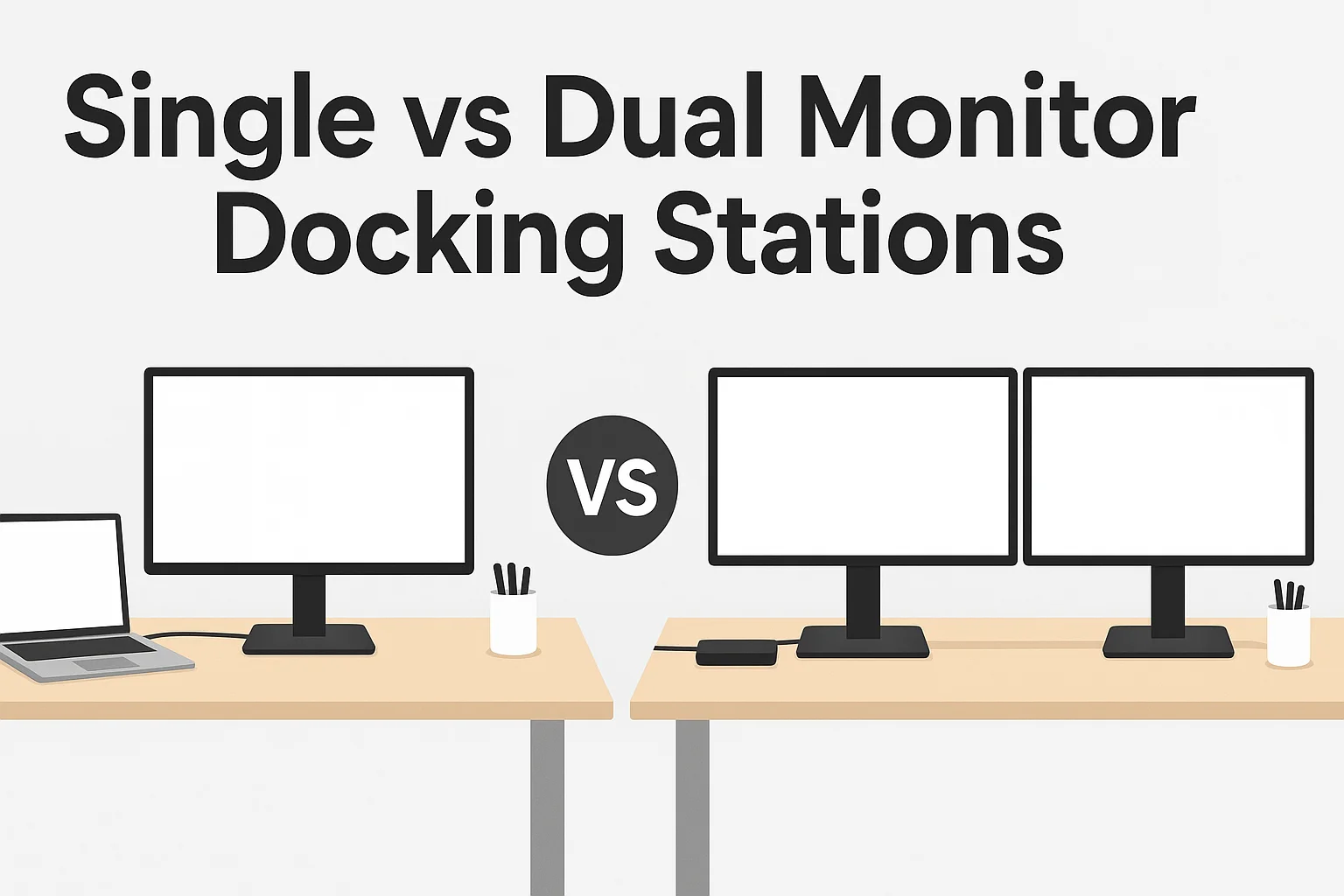
As hybrid work becomes the new normal across Australia, laptop users are upgrading their home and office setups for better comfort and productivity. One of the biggest choices you’ll face is simple but surprisingly important:
Should you choose a single-monitor docking station or a dual-monitor docking station?
The answer depends on your workflow, the applications you use, and the amount of screen space you genuinely need. In this guide, we break down the differences, use cases, performance considerations, and compatibility tips to help you choose the right refurbished docking station setup for home office 2025 — without overspending.
Quick Comparison: Single vs Dual Monitor Docking Stations
This comparison table provides a quick, scannable answer.
Feature Single Monitor Dock Dual Monitor Dock
Ideal For Students, basic computer users, light multitasking, portable workers Developers, designers, analysts, heavy multitaskers
External Displays Supported 1 monitor (+ laptop display) 2 monitors (+ laptop display)
Required Connection USB-C with DisplayPort Alt Mode Thunderbolt 4 or advanced USB-C / DisplayLink
Performance Great for 1080p or 4K single display Designed for dual displays, dual 4K in many models
Cost More affordable Higher cost, higher productivity payoff
Portability Compact, travel-friendly Larger, desk-bound, often needs AC power
Who Should Choose a Single Monitor Dock?
A single-monitor dock is the best choice if you value simplicity, mobility, and cost-effectiveness.
Choose a Single Monitor Dock If You:
● Mostly work in one application at a time — emails, documents, CRM dashboards.
● Use your laptop screen as your second display.
● Prefer a portable workstation — ideal for hot-desking, freelancers, onsite technicians.
● Need basic connectivity like USB ports, Ethernet, SD card, and power delivery.
● Want a budget-friendly setup without sacrificing quality.
Typical Users
● Students
● Remote employees with light workflows
● Creatives working primarily on laptops
● Professionals traveling between sites
Tip for Australian Buyers: Refurbished single-monitor docks from Dell, HP, and Lenovo deliver excellent 4K output at a fraction of the original price — a smart value upgrade for 2025.
When a Dual Monitor Dock Is the Right Choice
If your work involves multitasking, comparing documents, or using layout-heavy applications, a dual monitor dock can dramatically improve your workflow.
Studies show that dual monitors can boost productivity by up to 42%, simply by reducing time spent switching between windows.
Choose a Dual Monitor Dock If You:
● Work with large spreadsheets, dashboards, or financial tools
● Are a Developer who needs code on one screen and live test environments on the other
● Are a Graphic designer or video editor managing toolbars, timelines, and previews
● Need to run dual 4K monitors at smooth 60Hz
● Prefer a clean desk setup with all peripherals running through a single dock
Typical Users
● Data analysts & accountants
● Software engineers
● Designers, video editors, content creators
● Business professionals managing multiple apps at once
3 Critical Considerations Before Choosing a Dual Monitor Dock
Before buying, check these three factors to make sure your dock can actually support the displays you want.
1. Bandwidth: USB-C vs Thunderbolt vs DisplayLink:
Not all USB-C ports are equal.
2. Port Layout:
Check the back of your monitors and match them with the docking station outputs:
2× HDMI
2× DisplayPort
HDMI + DisplayPort combination
Choosing the wrong ports means you’ll be stuck buying adapters later.
3. Laptop Compatibility (Mac vs Windows)
Windows Laptops
Typically support dual external displays through MST (Multi-Stream Transport)
Works well with USB-C, Thunderbolt, or DisplayLink
MacBooks
Intel MacBooks → Dual displays often work easily
M1/M2/M3 non-Pro/Max Macs → Need DisplayLink docks to support dual external monitors
M1 Pro/Max/M2 Pro/Max/M3 Pro/Max → Native dual monitor support with Thunderbolt
If you’re unsure, TechnoPartners can help check your model.
Single vs Dual Monitor Dock: Final Recommendation
Choose a Single Monitor Dock If:
You want a compact, affordable setup
You use light productivity apps
You frequently travel or hot-desk
Your laptop screen functions well as your secondary display
Choose a Dual Monitor Dock If:
You manage multiple applications simultaneously
You rely on coding, design, analytics, reporting, or timelines
You want a permanent, high-efficiency desk setup
You need dual-screen productivity to do your best work
Why Buy From TechnoPartners Australia?
At TechnoPartners, every refurbished docking station is:
Professionally tested
Performance-validated for dual monitor setups
Backed by Australian warranty & local support
Up to 60% cheaper than brand-new docks
Whether you need a simple single-monitor dock or a high-end dual-monitor workstation, we help you find the right match — without paying premium retail prices
Upgrade Your Workspace Today
Browse our collection of expert-tested refurbished docking stations and build a smoother, more efficient workspace — starting today.
Docking Station FAQs
1. Is a dual monitor docking station worth it?
Yes — if your work involves multitasking, referencing multiple documents, coding, design, or analytics. Dual monitors can increase productivity by up to 42% by reducing window switching.
2. Can a USB-C docking station support two monitors?
Some can, but not all. USB-C with DisplayPort Alt Mode may support dual displays, but for reliable dual 4K output, Thunderbolt or DisplayLink docks are recommended.
3. Can MacBooks run dual external monitors?
MacBook Pro/Max models support dual external displays natively. Standard M1/M2/M3 MacBooks require a DisplayLink docking station to run dual extended displays.
4. Do I need a docking station for a single monitor?
Not always — but a docking station provides convenient single-cable charging, stable 4K output, extra USB ports, and a cleaner desk setup.
5. What’s better for productivity — single or dual monitors?
Dual monitors dramatically improve productivity for complex workflows. Single monitors are great for minimal setups or lighter tasks.
6. Will a docking station charge my laptop?
Most USB-C and Thunderbolt docks support power delivery (PD), but wattage varies. Always check the dock’s PD rating to ensure it matches your laptop’s requirement.